




Recording physical meetings, classes & conferences had always been the core of Noted. In late 2019, we had this 💡moment — why not record online meetings and conferences too?
Zoom had always been a well-known tool our subscribers use on their Mac, especially for online sales calls or virtual meetings.
While they’d usually have Noted running on the side to take notes, there was still something missing…
“How do I record screen sharing in Zoom?”
“How would I capture audio if I wear earphones?”
Screen Recording, built into Noted for Mac
Our first answer was a Zoom integration, run through a small companion app called Noted Mission Control. It has since been replaced by something simpler: Screen Recording, built right into the Noted Mac app.
There is nothing extra to install, and it is not tied to Zoom. It records Zoom just as well as Microsoft Teams, Google Meet or anything else on your screen, and you don’t need the meeting host’s permission to record.
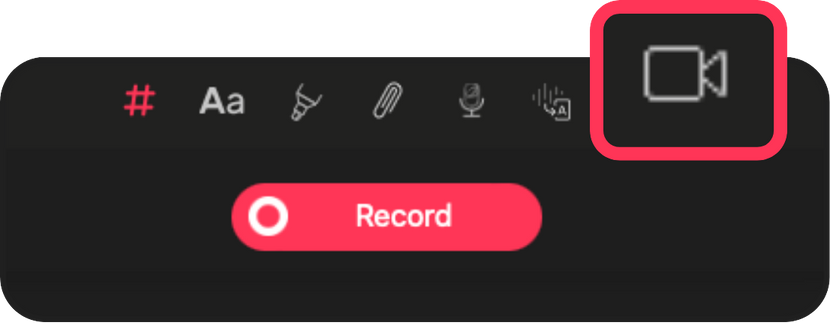
Click the Screen Recording icon in the toolbar, choose the screen or window you want and press Record. Noted captures the screen, its audio and your microphone straight into the note, so both questions above are answered: screen sharing is in the recording, and so is the call’s audio, earphones or not.
Everything you type while recording is time-stamped to the video, and you can add #TimeTags as the meeting goes. When it ends, hit Play to relive every moment, on your Mac or in the iOS app.
Getting started
Screen Recording is included on every plan, free trial included, and needs macOS Sonoma (14) or later. Our Screen Recording guide walks through each step.
For a step-by-step look at recording a Zoom call and taking notes alongside it, see How to Record Zoom Calls and Take Notes Using Noted.
Thank you and keep safe.