 Download

Can't find the answer you're looking for? Don't worry we're here to help!
Contact UsRelated Articles:
Tags:
All the recordings you make through the Watch app are ready to append to a notes on your iPhone as soon as they’re fully transferred – here’s how:
1. Navigate to the Watch Recordings folder on your iPhone.
2. Tap on a recording you wish to append and select ‘Append to note’. You can also access this button by tapping and holding the desired recording until you see the action menu.
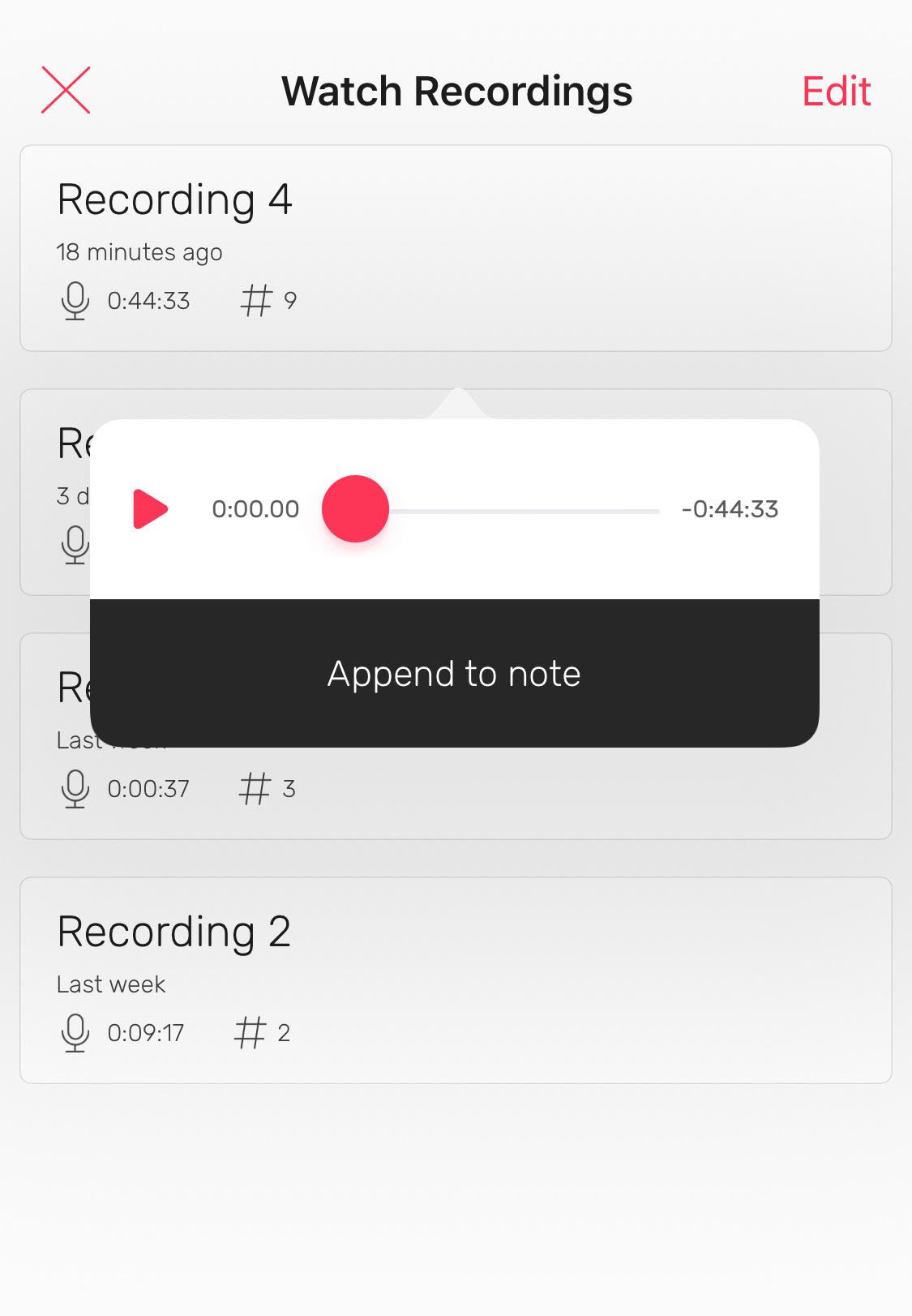
3. Select the notebook and note (or create a new notebook and note) you wish to append the recording to, then tap the Append button.
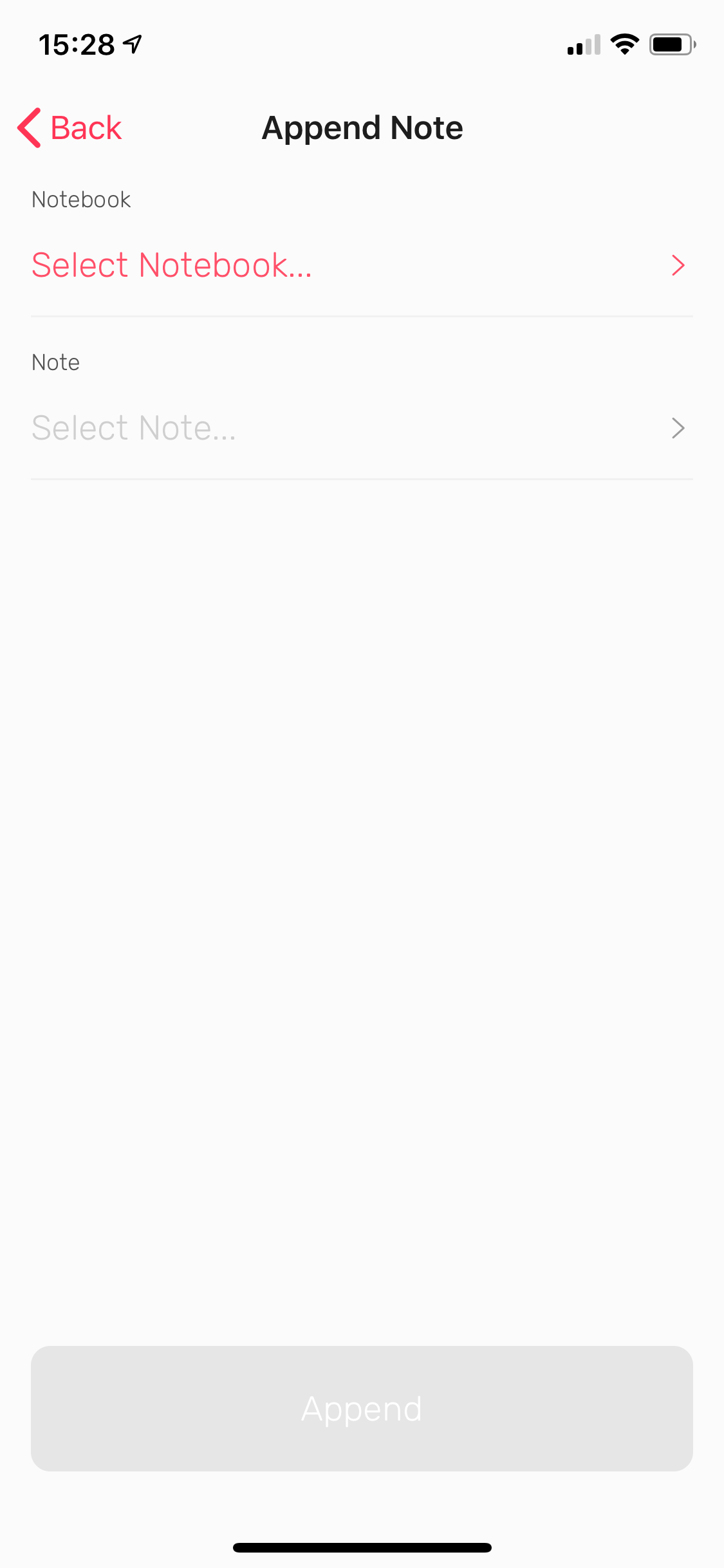
Any hashtags you added during the recording will be transferred to the note. If there’s existing content in the note, you will find the hashtags at the bottom of it.
Note: Ensure that the recording has transferred completely from your Apple Watch before appending it to a note. Three animated dots will appear to indicate that the transfer is still in progress.
Can't find the answer you're looking for? Don't worry we're here to help!
Contact Us