




How do I import audio or video into a note?
Last updated
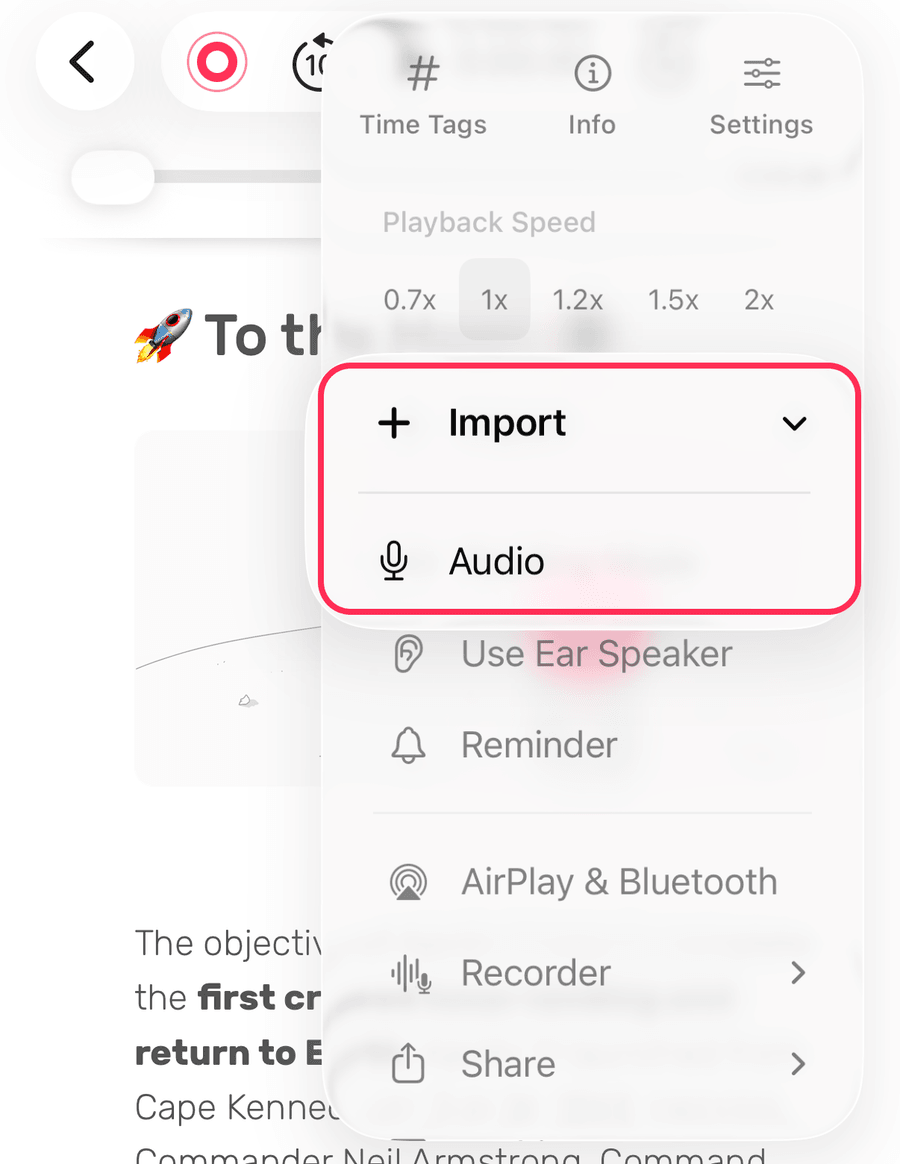
Open the note, tap ⋯ → Import and choose Audio or Video, then pick a file from the Files app (iPhone and iPad), or use Note → Import Audio / Import Video on a Mac. The file becomes the note's recording, and anything you type is timestamped to it. Record & PlaybackShort answer
Open the note, tap ⋯ → Import and choose Audio or Video, then pick a file from the Files app (iPhone and iPad), or use Note → Import Audio / Import Video on a Mac. The file becomes the note's recording, and anything you type is timestamped to it.
Whether it’s a lecture, an online meeting, or your own audio creation, Noted allows you to quickly import existing audio and video files in most common formats into a note.
Import Media on iOS
- Save the media file locally to your device or to a supported file provider in the Files app.
- Open the note where you want to import the media.
- Tap ⋯ → Import, then choose Audio or Video.
- Browse and select the media file to import it into the note.
Import Media on macOS
The easiest way to import a media file on Mac is to simply drag and drop it into a note. Alternatively:
- Open the note where you want to import the media.
- Click Note in the top menu bar.
- Select Import Audio or Import Video from the drop-down menu.
Importing Multiple Recordings
- Open the note where you want to add additional recordings.
- Open the note’s latest recording, then use ⋯ → Import → Audio again.