




How do I format text in my notes?
Last updated
Tap Aa on the editor toolbar for headers, bold, italic, underline, strikethrough, highlight, bullet and numbered lists, checklists, indents, quotes, page breaks and separators. On the Mac the same tools use the standard ⌘ shortcuts. EditorShort answer
Tap Aa on the editor toolbar for headers, bold, italic, underline, strikethrough, highlight, bullet and numbered lists, checklists, indents, quotes, page breaks and separators. On the Mac the same tools use the standard ⌘ shortcuts.
Noted offers a range of tools to format your notes. Tap Aa on the editor toolbar at the bottom of your screen, or click it on the toolbar at the top if you’re a Mac user.
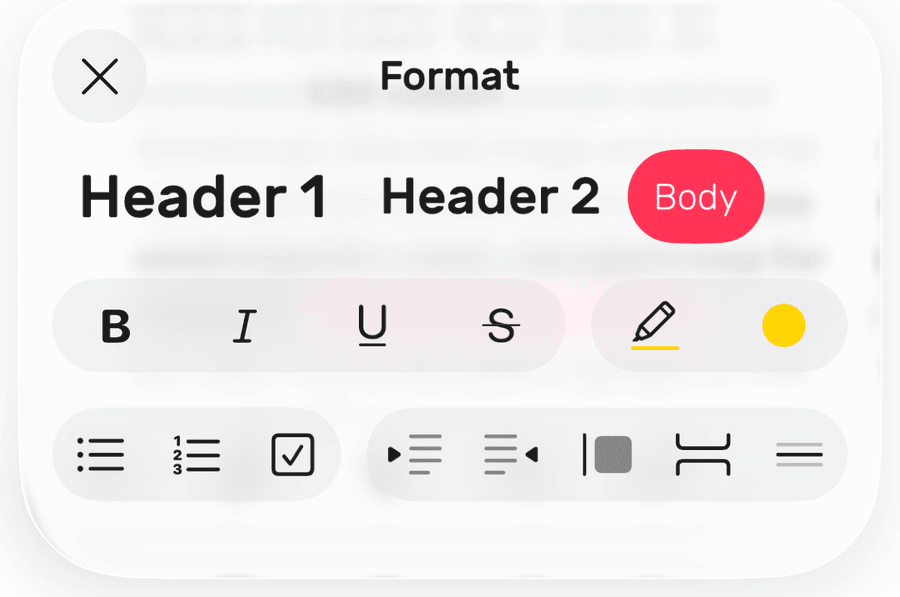
Below is a breakdown of all the text-formatting tools you can use to style your notes:
Header 1 (Header Large on Mac)
Header 2 (Header Medium on Mac)
Body
Bold
Italic
Underline
Strikethrough
Highlight
• Bullet list
1. Number list
☑ Checklist
Indent
Unindent
Quote
Page break
Separator
On iPhone and iPad, you can also select text and choose Format from the menu that appears. With a keyboard attached, press Tab to indent and Shift-Tab to unindent.
If you make a mistake or you change your mind about a particular formatting choice, you can easily edit it using the Undo and Redo buttons on the Editor Toolbar, or shortcuts ⌘Z and ⇧⌘Z.