



How do I start recording in Noted from Control Center, the Action Button or Siri?
Last updated
Add Start Recording to Control Center or the Action Button, or say “Start recording in Noted” to Siri. Each starts a recording without opening the app. EditorShort answer
Add Start Recording to Control Center or the Action Button, or say “Start recording in Noted” to Siri. Each starts a recording without opening the app.
What can Noted’s shortcuts do?
Noted shortcuts give you quick access to key actions without opening the app. You can:
- Start Recording to capture audio instantly.
- Create note to start a new note.
How do I set up these shortcuts?
- Open Control Center on your iPhone.
- Tap the + button to edit your controls.
- Tap Add a Control and search for Noted.
- Add Start Recording or Create note.
Your selected controls are now available in Control Center.
Can I start recording with the Action Button or Siri?
Yes. Both let you start a new recording without opening Noted first.
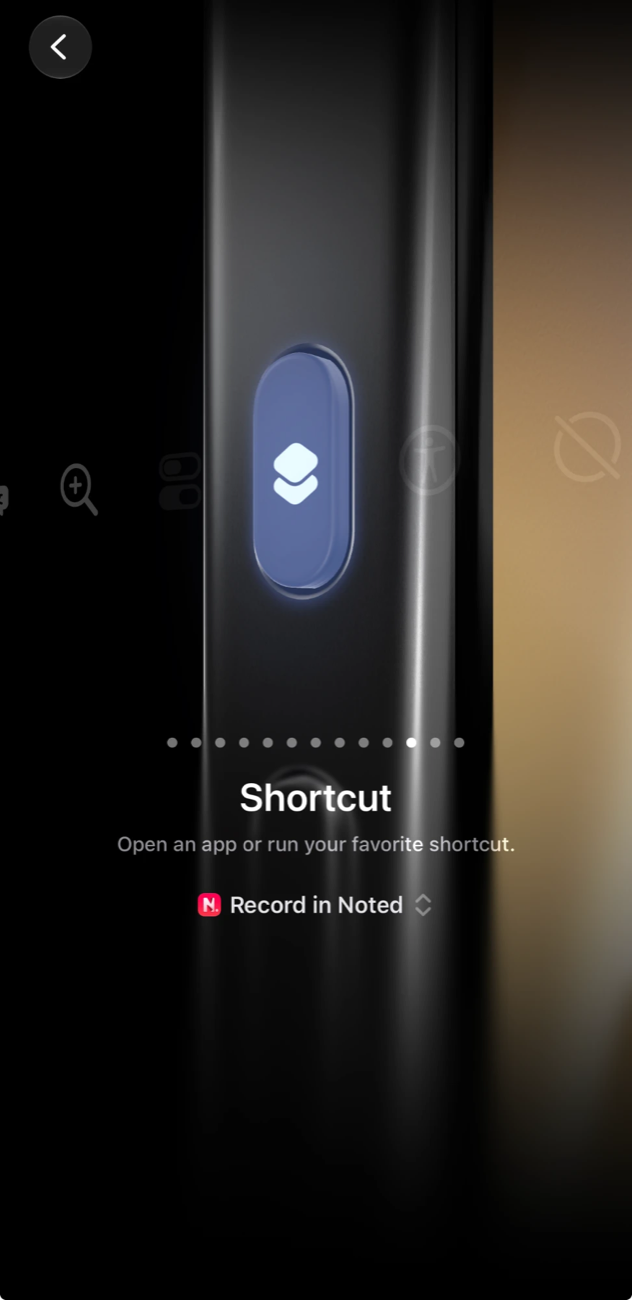
- Action Button (iPhone 15 Pro and later): go to Settings → Action Button, swipe to Shortcut, tap the shortcut selector and choose Noted’s Start recording action. Press and hold the Action Button to start recording.
- Siri: say “Start recording in Noted” to begin a new recording. No additional setup is needed.
Open Noted later to access your recording.
Can I customize my shortcuts?
Yes. You can add, remove or rearrange controls in Control Center to keep your most-used Noted actions within easy reach.