




How do I make voices clearer on playback?
Last updated
Open a note, tap ⋯, go to Settings and switch on Enhance voice. Background noise is turned down and voices become easier to hear during playback, while your original recording stays untouched. Enhance Voice is part of Noted Plus. Record & PlaybackShort answer
Open a note, tap ⋯, go to Settings and switch on Enhance voice. Background noise is turned down and voices become easier to hear during playback, while your original recording stays untouched. Enhance Voice is part of Noted Plus.
Recorded a lecture in a big hall, or a meeting in a busy café? Enhance Voice turns down background noise like coffee machines, air conditioning and nearby chatter, and makes quieter voices easier to hear.
How do I turn it on?
- Open a note with a recording.
- Tap ⋯, then go to Settings.
- Switch on Enhance voice.
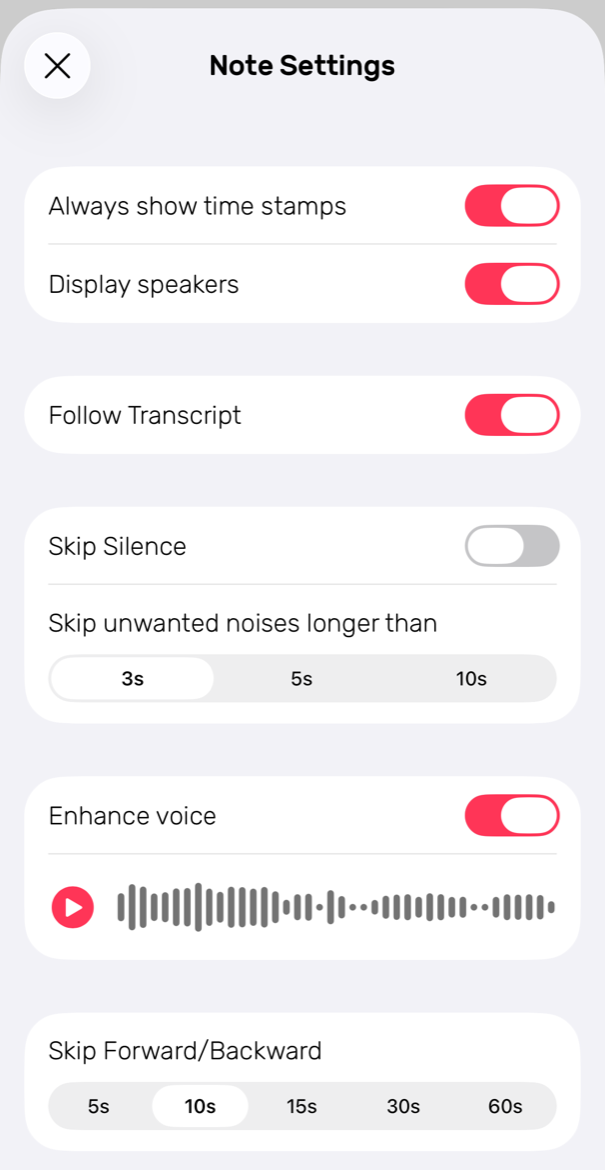
Press play to hear the difference. You can also tap any line in your note to jump to that moment in the recording, with clearer voices during playback.
Does it change my recording?
No. Enhance Voice only works during playback, so your original recording stays untouched. Switch it off at any time to hear the original audio.
Which devices does it work on?
Enhance Voice is available on iPhone, iPad and Mac, including iOS 17 and 18.
Do I need Noted Plus?
Yes. Enhance Voice is part of Noted Plus.
How is it different from the equalizer?
The equalizer lets you adjust low, mid and high frequencies by hand. Enhance Voice does the work for you, focusing on making voices clear.
For tips on recording clearer audio in the first place, see our guide to recording quality.