




How do I delete a recording but keep my notes?
Last updated
Open the note, tap ⋯ → Info, then tap Remove. Your typed notes, images and attachments stay; the recording and its transcript are deleted from all your devices, and it can’t be undone. To keep part of the recording, tap Trim instead. Record & PlaybackShort answer
Open the note, tap ⋯ → Info, then tap Remove. Your typed notes, images and attachments stay; the recording and its transcript are deleted from all your devices, and it can’t be undone. To keep part of the recording, tap Trim instead.
An old note with a long recording can take up a lot of space. You don’t have to delete the note to get rid of the recording: take the audio out and everything you typed stays where it was.
Removing a recording is permanent. It’s deleted from all your devices and can’t be undone or downloaded again, so if you might want part of it later, trim it instead.
Remove the recording from a note
iOS
- Open the note and tap ⋯ → Info.
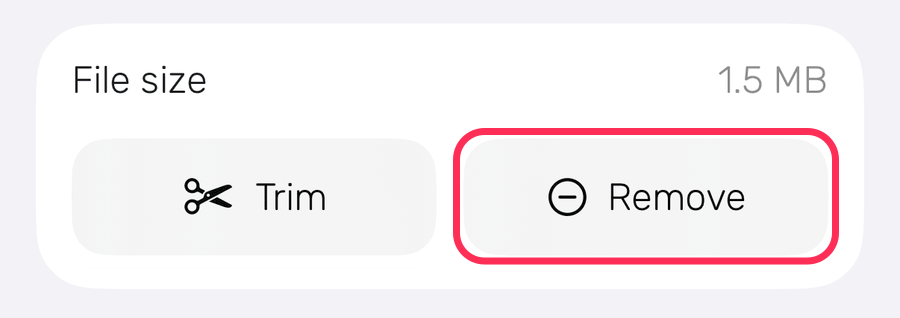
- Tap Remove, next to Trim under File size.
- Choose whether to Also remove timestamps. It’s on to start with, which removes each line’s time as well. Turn it off to keep the times beside your lines; they won’t play anything once the recording has gone.
- Tap Remove.
macOS
- Click ⋯ at the top right of the note, then the ⓘ tab.
- Click Delete next to ‘Audio file size’.
- Choose Remove audio to keep each line’s time, or Remove audio & timestamps to remove those too.
- Confirm.
What stays and what goes
Stays: everything you typed, your images and attachments, and the note’s summary.
Goes: the recording and its transcript, on all your devices. If you also remove timestamps, each line’s time and any Time Stroke drawings go too.
If you want anything from the transcript, copy it into the note before you remove the recording.
Only need part of it?
Trim the recording instead, and keep just the part that matters.