



How do I record my screen on Mac with Noted?
Last updated
Click the Screen Recording icon on the Mac toolbar, choose the screen or window and press Record. Noted captures the screen, its audio and your microphone into the note, with everything you type time-stamped. Record & PlaybackShort answer
Click the Screen Recording icon on the Mac toolbar, choose the screen or window and press Record. Noted captures the screen, its audio and your microphone into the note, with everything you type time-stamped.
Our Screen Recording feature allows you to easily capture your computer screen or online meetings, such as Zoom, Microsoft Teams and Google Meet directly from the Noted Mac app.
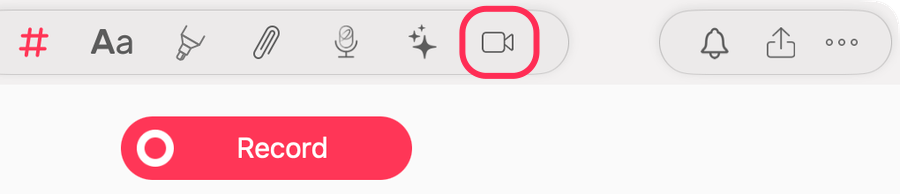
Where can I find this Screen Recording feature?
You can find this icon in the toolbar of a new note, before anything has been recorded (next to the Transcribe icon)
How do I use it?
- Click the Screen Recording Icon: Find the icon in the top toolbar (next to the transcribe icon)
- Select Your Preferences: Choose your recording settings to tailor the capture to your needs.
- Start Recording: Begin recording your meeting with a single click.
- Review Your Recording: When the meeting ends, hit Play to relive all your captured moments!

Is this available to all users?
Yes, it is available on every plan, including free trials. You can view your recording on iOS app too!
To use the feature, your Mac should be running one of these operating systems:
- macOS Sonoma 14.6
- Any subsequent versions of macOS
What should I do if I encounter any issues?
If you encounter any issues, please reach out to our support team at support@notedapp.io.