





Taking notes while watching a video shouldn’t mean constantly pressing pause.
Stop the video to write something down, press play, then rewind because you’ve missed the next part. Before you know it, a 20-minute lecture has taken an hour.
Here’s a calmer way: let the video play, write down only what matters, and let the recording keep the rest.
Before you press play
Set up your video and Noted side by side. Here’s how, depending on your device:
- iPhone Duo: Open it flat, with the video on one side and Noted on the other.
- iPad: Put the video app and Noted side by side.
- Mac: Open the video in your browser with Noted beside it, and use Screen Recording. It records your Mac’s own sound, so headphones are fine.
- Any other iPhone: Play the video on a laptop or TV, and record it with Noted on your phone.
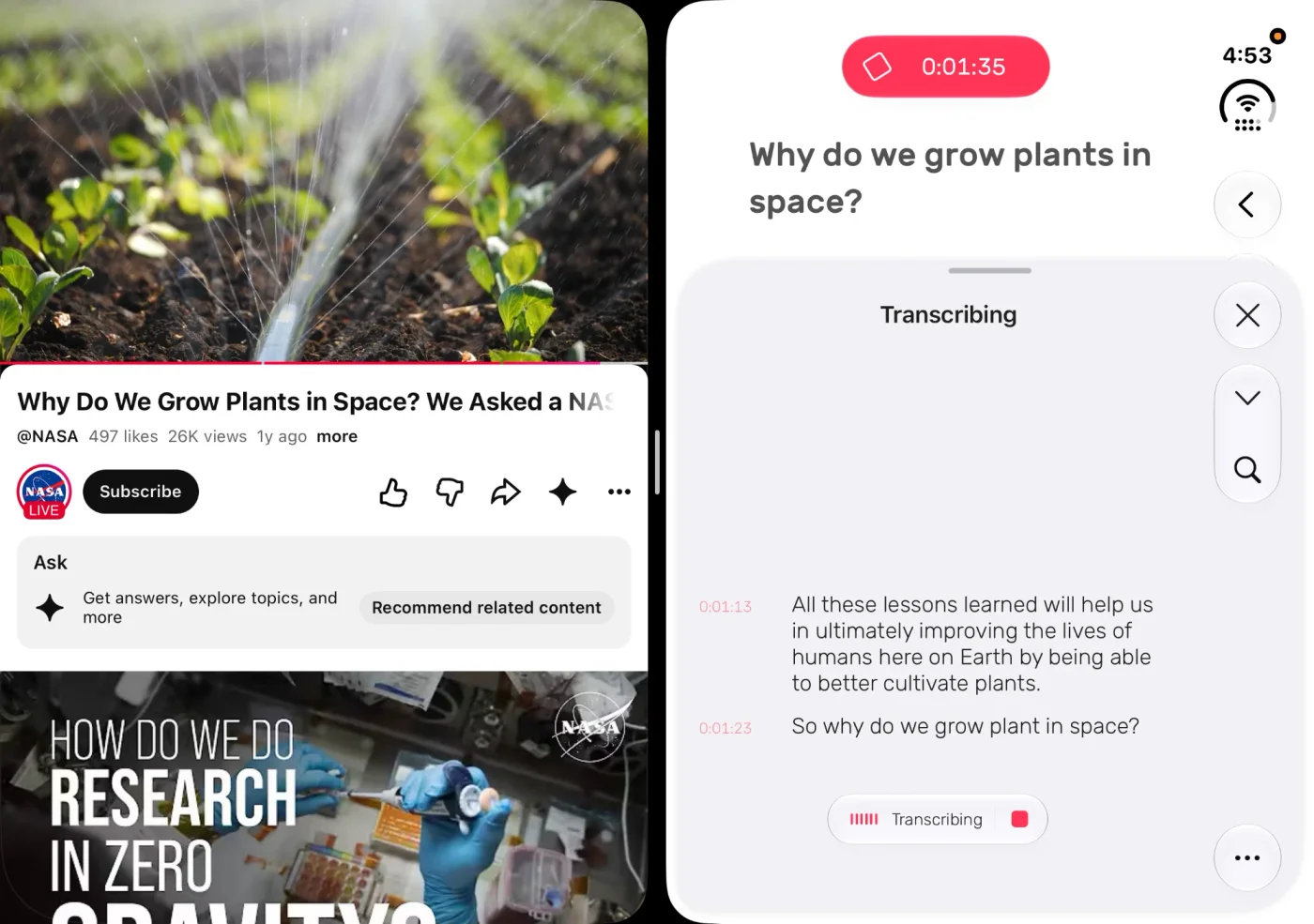
A NASA video on one side, Noted recording it on the other.
On iPhone and iPad, play the video through your speakers. Noted records through the microphone, so it needs to hear the speaker. Turn the volume up and leave your headphones out.
Start a note and give it the video’s title, so it’s easy to find again when you need it.
While it plays
1. Start recording, then play the video.
Want to follow along with the words? When Noted asks “Transcribe live as you record?”, tap Start. You’ll see the speaker’s words appear on screen in real time. Keep Noted on screen while it transcribes. Live transcription needs iOS 26 or later.
2. Write down what matters, and nothing else.
Focus on the things worth remembering: a definition, an important date, or a step you’ll need to repeat. Every line you type gets a timestamp, so you can jump straight back to that moment in the recording.
3. Tag important moments for later.
Type # followed by a word while recording, like #exam or #formula. Noted groups matching tags in the Tags tab, making it easy to find related moments across your notes. Tap a tag to return to its moment in the recording.
4. Don’t pause.
That’s the point. Miss something? Just write “missed this” and keep watching. The recording captures everything, so you can come back to it later.
After the video
1. Jump straight to the moment you need.
Tap any line in your notes and Noted takes you straight to that point in the recording. No searching through the timeline or guessing where something was said.
2. Replay tricky explanations at your own pace.
Change the playback speed to 0.7x (0.75x on a Mac) to catch a tricky explanation, or 1.5x to review a whole talk in less time. Voices keep their normal pitch.
3. Search for a word.
Looking for where the speaker mentioned “entropy”? Search your note, find the matching line and tap to hear that part again.
4. Fill in the gaps.
Go back to every “missed this” marker, listen to the explanation and fill in the details. You can build more complete notes without interrupting your original viewing.
Why it works
Watch the video once, without constantly stopping to catch every detail. Your notes capture what matters to you, while the recording keeps everything else just a tap away.
Get Noted on the App Store or the Mac App Store.
Watch it once. Find the exact moment.